Findings and triage
Code Security uses two words with precise meanings:
- An issue is a kind of problem, like “Secret in codebase” or “Potential XSS from use of
dangerouslySetInnerHTML”. Each issue corresponds to one scanner rule. - A finding is one instance of an issue, at a specific file and line range in one of your repositories.
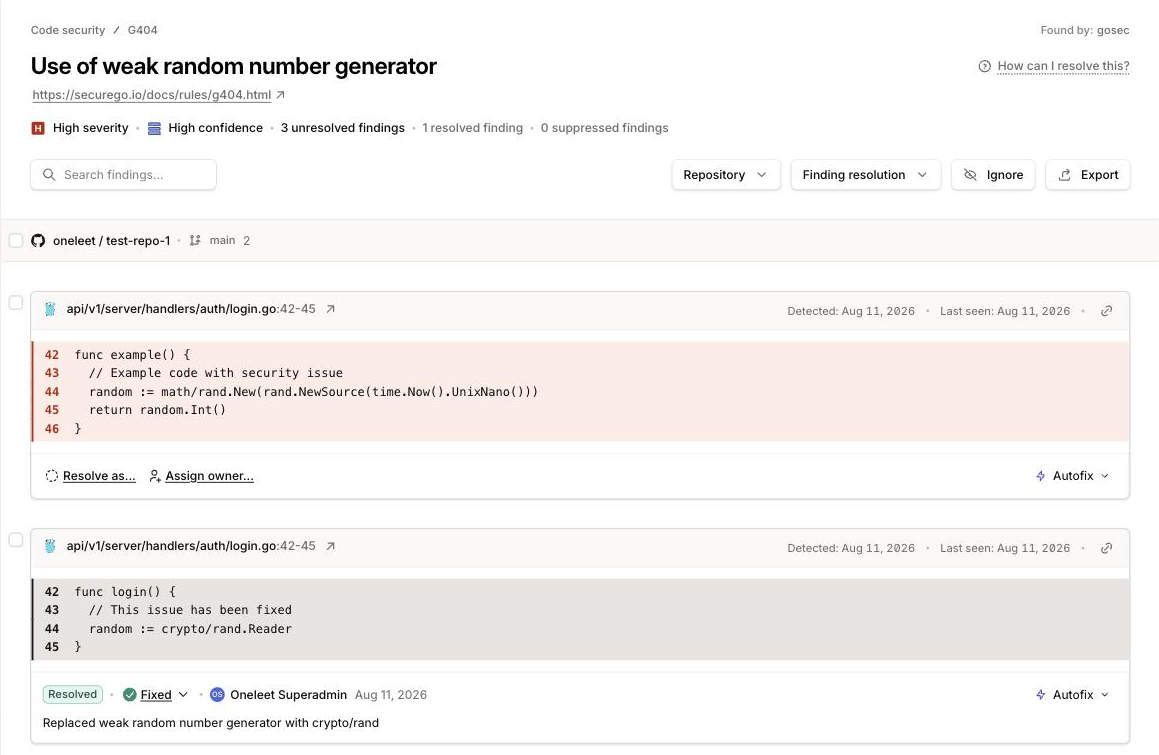
The Code Security dashboard lists issues. Click an issue to see its findings, grouped by repository. Triage happens at the finding level, so you can accept a risk in one place while fixing the same issue elsewhere.
Reading a finding
Section titled “Reading a finding”Each finding shows the affected file and lines, linked directly to the source on GitHub or GitLab, along with when it was first detected and last seen. If the repository has Capture code snippets enabled, the finding also shows the offending lines of code. If not, only the file path and line numbers are shown, and snippets never reach Oneleet’s storage.
The issue page above the findings carries the rule’s severity, confidence, a description of the problem, and remediation recommendations. You rarely need to leave the page to understand what to do.
The finding lifecycle
Section titled “The finding lifecycle”Findings track your code automatically:
- Fix the code and the finding resolves itself. When a scan of the target branch no longer detects a finding, it’s automatically resolved and shows “Absent from most recent scan”. You don’t need to click anything.
- Auto-resolved findings reopen if the code comes back.
- Manually resolved findings never reopen automatically. When you resolve a finding yourself, that decision sticks even if the code is still there on the next scan.
A finding is always Open, Resolved, or Suppressed (hidden by an ignore rule or your sensitivity setting). Toggle the Suppressed filter to see them.
Resolving findings manually
Section titled “Resolving findings manually”For findings you won’t fix in code, use Resolve as… on the finding (or select several findings and resolve them in bulk):
| Resolution | Use it when |
|---|---|
| Fixed | You’ve addressed the issue in a way the scanner can’t observe |
| False positive | The finding matched the rule, but there’s no actual security issue |
| Accepted risk | The issue is real, but low-impact enough that you’re choosing not to fix it |
| Mitigated | A control outside this code (a WAF rule, network isolation) addresses the risk |
| Removed | The affected code no longer exists |
Every resolution requires a short written justification, because the resolution and its reasoning become part of your audit trail.
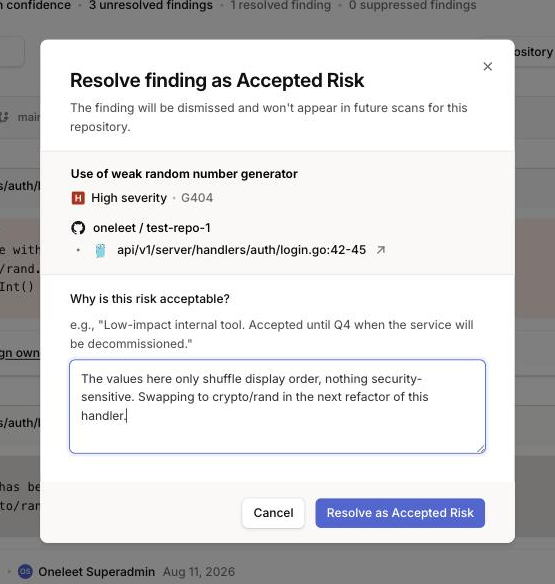
You can also assign an owner to a finding to put someone on the hook for it, and filter the dashboard by owner.
Ways to make a finding go away
Section titled “Ways to make a finding go away”How the options compare:
| Action | Scope | Future scans | Pull request checks |
|---|---|---|---|
| Fix the code | One finding | Auto-resolves, reopens if reintroduced | Passes |
| Resolve manually | One or more findings | Stays resolved | Doesn’t fail the check |
| Ignore rule | An issue, in chosen repositories | New findings suppressed | Doesn’t fail the check |
| Ignore dotfile | Rules and/or paths in one repository | Matching findings suppressed | Doesn’t fail the check |
| Lower sensitivity | Everything below a confidence level | Suppressed from the next scan | Doesn’t fail the check |
Prefer fixing, then resolving with a reason, and keep ignore rules few and narrow.
Notifications
Section titled “Notifications”When a scan turns up new findings, tenant admins receive an email with the count and repository. You can toggle this under notification settings (“Code security findings”), and per-severity counts are included in your digest email.
Exporting
Section titled “Exporting”The Export button on the dashboard downloads the latest scan results for your repositories as SARIF files, the industry-standard format for static analysis results for you to feed into other tools.